 mlapplications.com
How to put your own picture on the Windows taskbar
Windows lets you change the wallpaper, not the taskbar. With a free app you can turn any PNG or JPG (a photo strip, a texture, your brand colours) into the taskbar background.
Short answer: in the free Transparent Taskbar+ Lite, choose Image in the Background row, click Choose picture, pick a PNG or JPG, set the fit and opacity, and press Apply.
Step by step
Open the settings
Start Transparent Taskbar+ Lite and open its settings in the browser or the app window.
Choose Image in the Background row
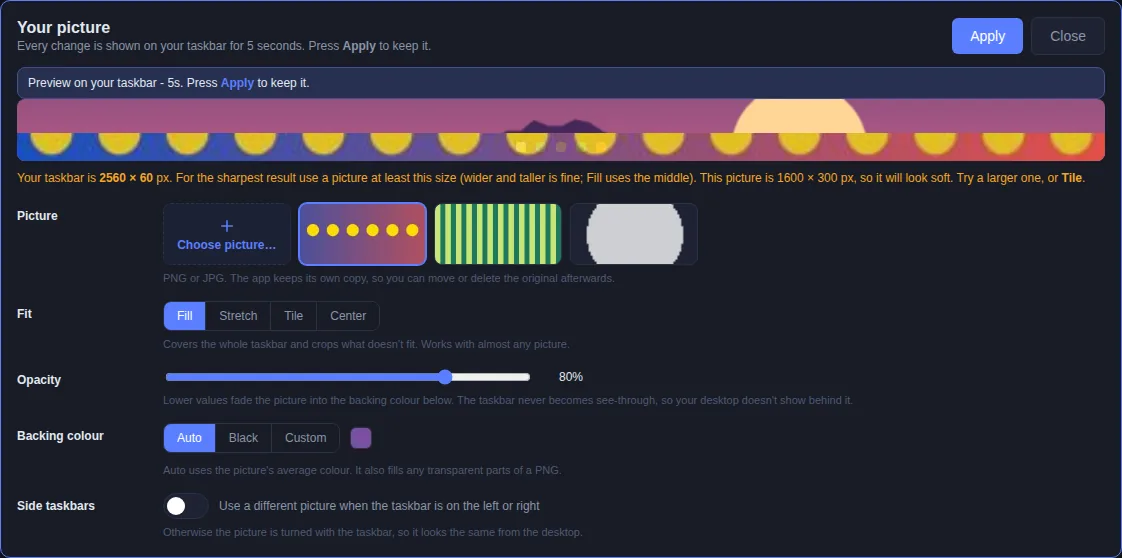
Click Choose picture on the Image card and pick any PNG or JPG. Recent pictures stay in the panel for next time.
Choose how it fits
Fill crops to cover the taskbar, Stretch squeezes it, Tile repeats it and Center keeps its real size.
Set opacity and backing colour
Lower the Opacity to fade the picture into the Backing colour (automatic from the picture, black, or custom). The taskbar never turns see-through behind a picture.
Press Apply
Every change previews on your real taskbar for 5 seconds. Apply keeps it.
Get a sharp result
Use the size hint
The panel shows your taskbar size, e.g. 2560 × 60 px. Make the picture at least that big.
Textures: Tile
Small seamless textures (64 × 64) repeat cleanly with Tile.
Logos: Center
Use Center with a matching Backing colour. Transparent PNG areas show that colour.
Calm busy photos
Set Opacity to 60-80% and add a Glass dock so icons stay readable.
Not ready to make a picture? Click Pattern instead and pick one of 50+ built-in patterns in four families: Dark, Light, Thin Glow and Heavy Glow & Beams.
Frequently asked questions
Can I use my own picture as the Windows 11 taskbar background?
Yes, with the free Transparent Taskbar+ Lite from the Microsoft Store. Choose Image in the Background row, click Choose picture, pick any PNG or JPG, choose Fill, Stretch, Tile or Center, set the opacity and backing colour, then press Apply. It works on Windows 11 and Windows 10.
What picture size should I use for the taskbar?
The picture panel shows your taskbar's exact size in pixels, for example 2560 × 60. Use a picture at least that size for a sharp result; Fill uses the middle of a bigger picture. Small textures such as 64 × 64 look best with Tile, and a logo looks best with Center and a matching backing colour.
Do I have to keep the original picture file?
No. The app keeps its own copy of the picture, so you can move or delete the original afterwards.
Can I use a different picture when the taskbar is on the side?
Yes. Turn on Side taskbars in the picture panel and choose a separate tall picture for a left or right taskbar.
Get Transparent Taskbar+ Lite - free
Free on the Microsoft Store for Windows 10 and Windows 11. No registry changes; installs and uninstalls like any Store app.
