 mlapplications.com
How to make the Windows 11 taskbar transparent
Windows has a "Transparency effects" switch, but it only makes the taskbar slightly see-through. For a truly clear taskbar you need a small free app. Here is how, in about a minute.
Short answer: install the free Transparent Taskbar+ Lite from the Microsoft Store, choose Transparent in the Background row and press Apply. Your wallpaper then shows straight through the taskbar, on Windows 11 and Windows 10, with no registry changes.
What the built-in Windows setting does
In Settings > Personalization > Colors, Transparency effects gives the taskbar and Start menu a light, tinted blur. It never becomes fully clear, and there is no slider for how transparent it is. That is why most people who search for a transparent taskbar end up using a small app.
Make it fully transparent, step by step
Install Transparent Taskbar+ Lite
Get it free from the Microsoft Store and start it. Its icon appears in the tray next to the clock.
Open the settings
The settings open in your browser or in the app window. The first time, the browser asks to let the page talk to the app on this PC: click Allow once.
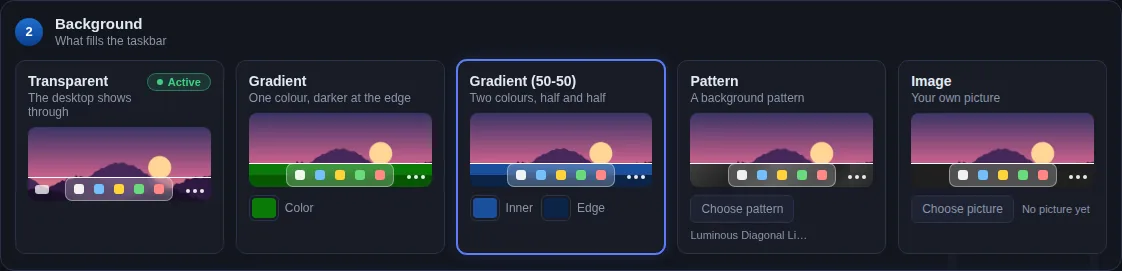
Choose Transparent in the Background row
Row 2 is the background. Click Transparent: your taskbar shows the result for 5 seconds.
Pick a line and buttons (optional)
Row 1 adds a thin or thick border line, row 3 adds glass or coloured buttons or a dock behind your icons. Leave them plain for a clean, clear look.
Press Apply
The style is saved. Turn on Start with Windows in Settings so it is there after every restart.
Three transparent looks that work
Clean
Transparent background, thin Auto line, plain icons. Looks like Windows, only lighter.
Readable on busy wallpapers
Transparent background with a Glass dock behind the icons, so they stay clear on any photo.
Frosted
Acrylic background with low blur and tint, for a softer see-through glass.
Safe to try: nothing is written to the registry. Undo changes puts back everything since your last Apply, and Reset Default Values returns to a thin line, transparent background and plain icons.
Frequently asked questions
How do I make the Windows 11 taskbar fully transparent?
Install the free Transparent Taskbar+ Lite from the Microsoft Store, open its settings, choose Transparent in the Background row and press Apply. The wallpaper shows straight through the taskbar. It works on Windows 11 and Windows 10, makes no registry changes, and Undo or Reset Default Values brings back the previous look.
Why is my taskbar not fully transparent with Windows Transparency effects?
The Windows setting (Settings > Personalization > Colors > Transparency effects) only makes the taskbar slightly translucent with a tinted blur; it has no fully clear option. A taskbar customizer such as Transparent Taskbar+ Lite is needed for a completely transparent taskbar.
Does the transparent taskbar stay after a restart?
Yes. Turn on Start with Windows in the Settings tab and your style is applied automatically every time you sign in.
Does it work with several monitors and with top or side taskbars?
Yes. Transparent Taskbar+ Lite styles the taskbar on every monitor, at the bottom, top, left or right of the screen.
Can the taskbar turn solid when a window is maximized?
No. Transparent Taskbar+ Lite keeps one style at all times. If you need the taskbar to change when a window is maximized or the Start menu opens, TranslucentTB does that; both are free.
Get Transparent Taskbar+ Lite - free
Free on the Microsoft Store for Windows 10 and Windows 11. No registry changes; installs and uninstalls like any Store app.
