 mlapplications.com
How to get a Mac-style dock on the Windows 11 taskbar
You don't need a separate dock app that replaces the taskbar. Transparent Taskbar+ Lite styles the taskbar you already have: a glass panel behind your icons, and icons that grow under the mouse like on a Mac.
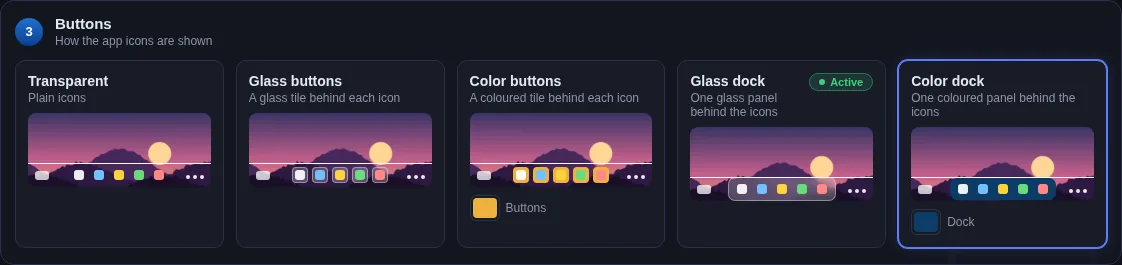
Short answer: in the free Transparent Taskbar+ Lite, set the Background to Transparent, choose Glass dock in the Buttons row and press Apply. The Icon magnifier (on by default) makes the icon under the mouse grow like a dock.
Step by step
Center your icons
Windows 11 centers them by default. If not: Settings > Personalization > Taskbar > Taskbar behaviors > Taskbar alignment: Center.
Make the background transparent
In Transparent Taskbar+ Lite, choose Transparent in the Background row so only the dock stands out.
Choose Glass dock
In the Buttons row pick Glass dock for a frosted panel behind all your icons, or Color dock in your own colour.
Check the Icon magnifier
In the Effects tab the Icon magnifier is on by default: the icon under the mouse grows out of the taskbar on a glass bubble.
Press Apply
Your dock is saved and comes back after every restart with Start with Windows on.

Make it feel even more like a dock
Mouse light
Turn on Mouse light shadow in Effects: a soft light follows the pointer across the glass.
No line
Choose No line in row 1 for a floating, borderless look.
Dark glass
A dark or Thin Glow pattern under the Glass dock looks great with dark mode.
Good to know: the magnifier enlarges icon buttons (apps, Start, Task view). Wide items such as the search box and the clock stay their normal size. More in the Effects Guide.
Frequently asked questions
How can I make the Windows 11 taskbar look like a Mac dock?
Install the free Transparent Taskbar+ Lite from the Microsoft Store. Choose Transparent as the background and Glass dock (or Color dock) in the Buttons row, then press Apply. Its Icon magnifier, on by default, makes the app icon under the mouse grow out of the taskbar like a Mac dock, and clicks still go to the real icon.
Is this a separate dock app?
No. Transparent Taskbar+ Lite styles the real Windows taskbar, so the Start button, pinned apps, jump lists, previews and the system tray keep working exactly as before.
Can I click the magnified icon?
Yes. The enlarged icon is a live copy shown above the real one, and clicks go through it to the real icon, so apps open and jump lists and previews work as usual.
How do I center the icons like a dock?
Windows 11 centers taskbar icons by default. If yours are on the left, open Settings > Personalization > Taskbar > Taskbar behaviors and set Taskbar alignment to Center.
Get Transparent Taskbar+ Lite - free
Free on the Microsoft Store for Windows 10 and Windows 11. No registry changes; installs and uninstalls like any Store app.
