 mlapplications.com
How to change the taskbar colour in Windows 11
Windows can tint the taskbar with your accent colour, but that's all. For any colour, a two-colour gradient, a pattern or coloured buttons, use a free taskbar customizer.
Short answer: Windows can show your accent colour on the taskbar (Settings > Personalization > Colors). For any colour or a gradient, install the free Transparent Taskbar+ Lite, choose Gradient or Gradient (50-50) in the Background row, pick your colours and press Apply.
The Windows way: accent colour
Open Settings > Personalization > Colors and turn on Show accent colour on Start and taskbar. The taskbar takes your accent colour as a flat tint. In some Windows 11 versions this switch is greyed out unless Windows is in dark mode. There is no gradient, pattern or separate colour for the icons.
Any colour or a gradient, step by step
Open Transparent Taskbar+ Lite
Install it free from the Microsoft Store and open its settings.
Choose a gradient
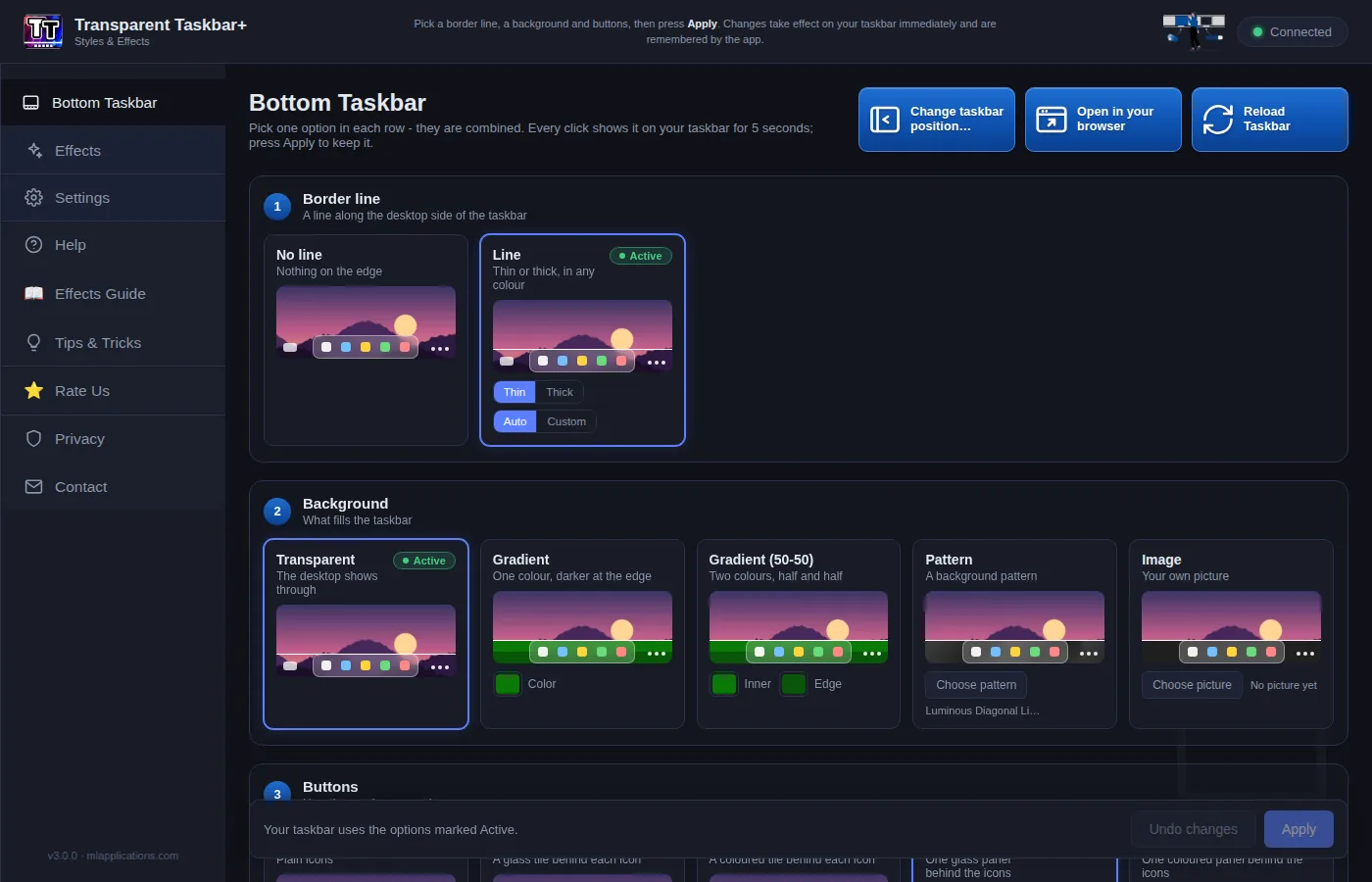
In the Background row pick Gradient (one colour, darker towards the screen edge) or Gradient (50-50) (two colours, Inner and Edge).
Pick your colours
Click the colour boxes on the card. Each change shows on your real taskbar for 5 seconds.
Add a matching line (optional)
In row 1 choose a thin or thick Line with Custom colour for an accent edge.
Press Apply
Your colours are saved and come back after every restart.
Colour ideas
Brand colours
Gradient (50-50) in your two brand colours with Color buttons in an accent colour.
Just the icons
Transparent background with a Color dock: colour only behind your apps.
Frosted tint
Acrylic with a Custom tint colour for coloured glass.
Patterns
50+ built-in patterns, from subtle dark textures to glowing beams.
Frequently asked questions
How do I change the taskbar colour in Windows 11?
Windows can tint the taskbar with your accent colour: Settings > Personalization > Colors, then turn on Show accent colour on Start and taskbar (in some Windows 11 versions this needs dark mode). For any colour, a two-colour gradient or a pattern, use the free Transparent Taskbar+ Lite: choose Gradient or Gradient (50-50) in the Background row, pick the colours and press Apply.
Why is "Show accent colour on Start and taskbar" greyed out?
In some Windows 11 versions the option only works when Windows is in dark mode. Set Choose your mode to Dark (or Custom with a dark Windows mode) in Settings > Personalization > Colors, and the option becomes available.
Can I use two colours on the taskbar?
Yes. In Transparent Taskbar+ Lite choose Gradient (50-50) and pick an Inner and an Edge colour. The one-colour Gradient fades your colour darker towards the screen edge.
Can I colour only the buttons behind the icons?
Yes. Keep the background transparent and choose Color buttons or Color dock in the Buttons row, then pick the colour.
Get Transparent Taskbar+ Lite - free
Free on the Microsoft Store for Windows 10 and Windows 11. No registry changes; installs and uninstalls like any Store app.
